Your projects. On your own device.
Looking for interior design software that keeps your data on your own device? This Ordine walkthrough shows the “On device” indicator, the option to connect your own Dropbox, and a project status view that you can copy as plain text.
Start with where the project is stored
A project record includes the work your studio has built up over time. In this walkthrough, the focus is where that record lives and how you can take a readable summary into another conversation.
The application header displays “On device.” The narration explains that projects are stored on your own device, and the recording zooms in on the indicator so you can see the storage location identified in the workspace.
That is a concrete starting point when reviewing the software: look at the location shown for the project you are working on. The video connects that visible label with the storage settings opened next.
Interior design software with data on your device: see the storage settings
Open “Saving and devices” to review the storage information. The recording shows the local device context and the option to connect Dropbox.
The narration describes connecting your own Dropbox when you want projects on your phone and laptop. That places the account choice with you: the connection is to your Dropbox account, alongside the project stored on your device.
For this walkthrough, follow the relationship between the header and the settings window. One identifies the current storage location; the other shows where the Dropbox connection is available. Together, they make the storage arrangement visible within the program.
Use your own Dropbox for the connection
The “Connect Dropbox” option is shown in the settings. The narration also states that Ordine's team does not see your projects.
For a studio, the relevant distinction is the project data itself: your work is stored on your device, with your own Dropbox available for the connection between devices. These are the product details the demonstration introduces.
Ordine does not send your projects to its team for storage.
Copy a readable project status
The walkthrough then opens “Status.” A text view presents the project record, with a “Copy all” button below it. The narration describes the whole project as plain text, ready to copy.
This gives you a starting point for a written update. Read through the status, copy the text and choose what belongs in the message you are preparing. A project-wide record can contain more detail than one recipient needs, so reviewing it is a useful part of that step.
Carry the project context into your next message
The sequence moves from storage location to settings and then to readable project text. Each part answers a practical question: where is the work stored, where is the Dropbox connection, and how can you copy the project context?
Watch those three steps together. They show how the project remains a working record on your device and how its status can become text for a conversation with a client or collaborator.
Questions and answers
Where are my Ordine projects stored?
Whose Dropbox account do I connect?
Can I copy the project status into a message?
Does Ordine's team see my projects?
See where your project lives and how to copy its status.
Join the Ordine early-access list for launch news and an early price offer. No payment today. No obligation to buy.
More videos
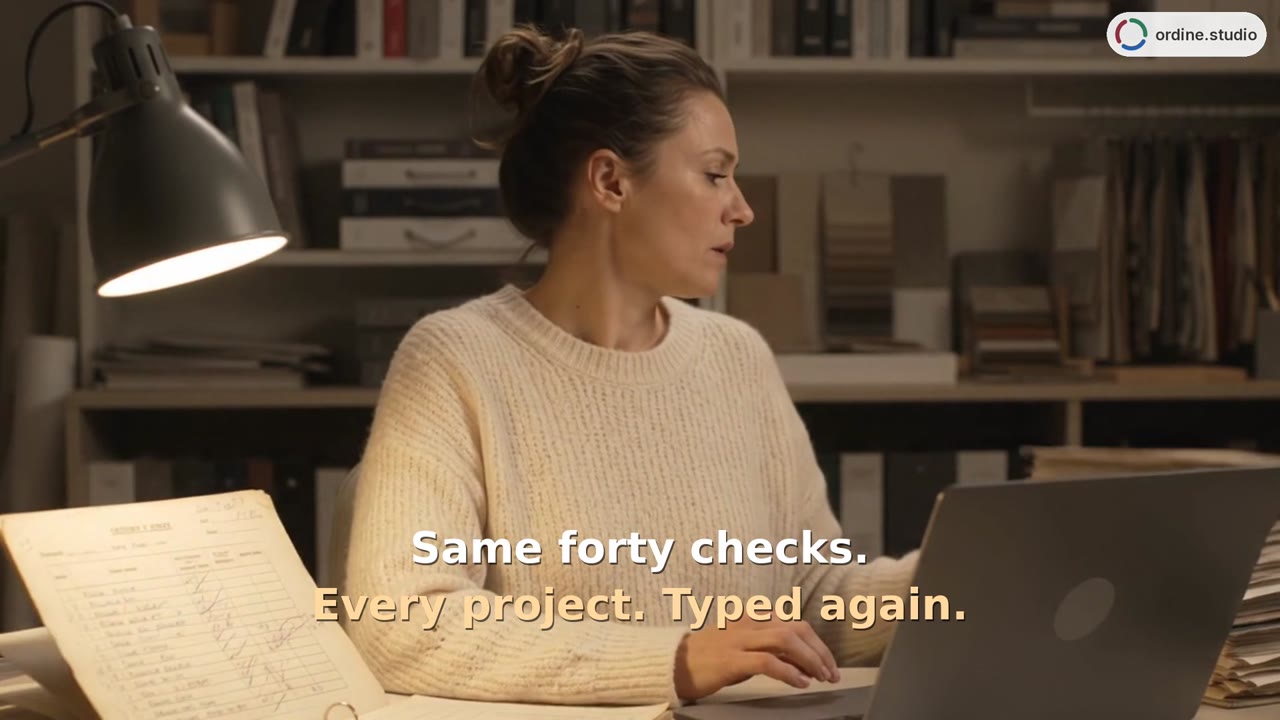 41 sReuse checklistsCopy a five-point kitchen checklist with two completed checks, paste it into another task and see the new list start at 0/5. Add a floor-drain check for the bathroom.
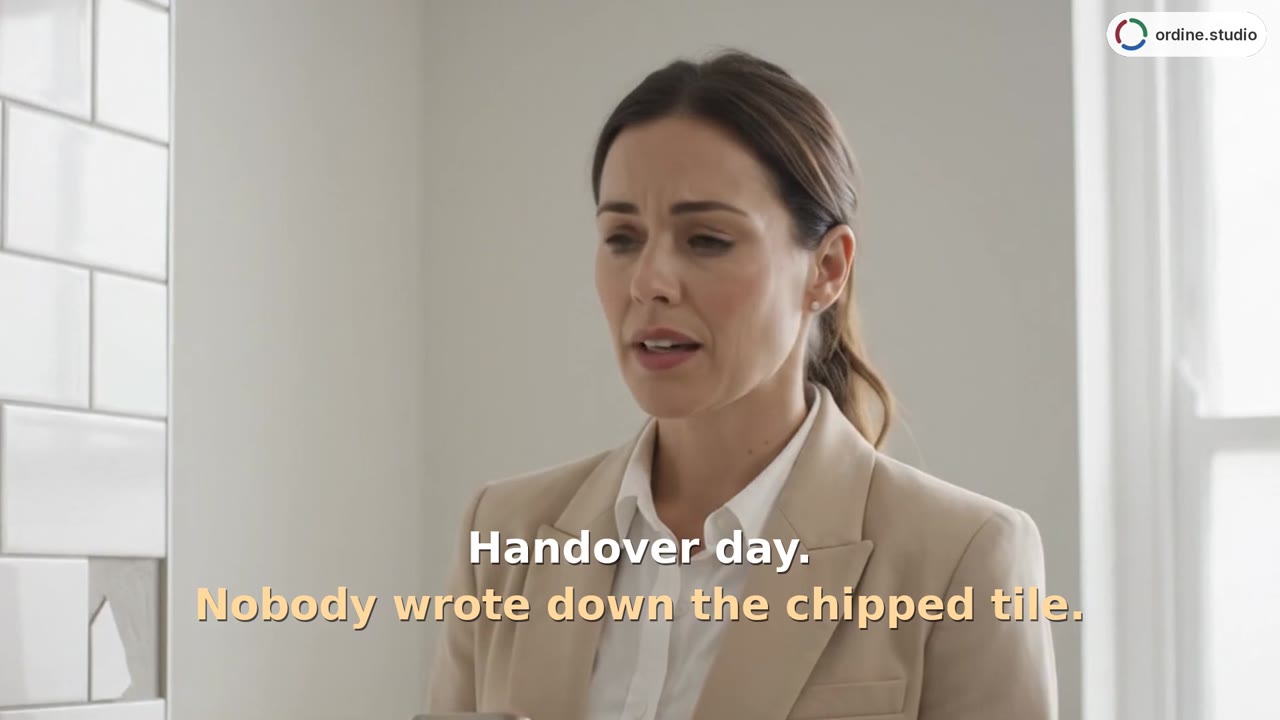 44 sSnag list at handoverReview final items one by one, record completed repairs, and copy the project status for a client message.
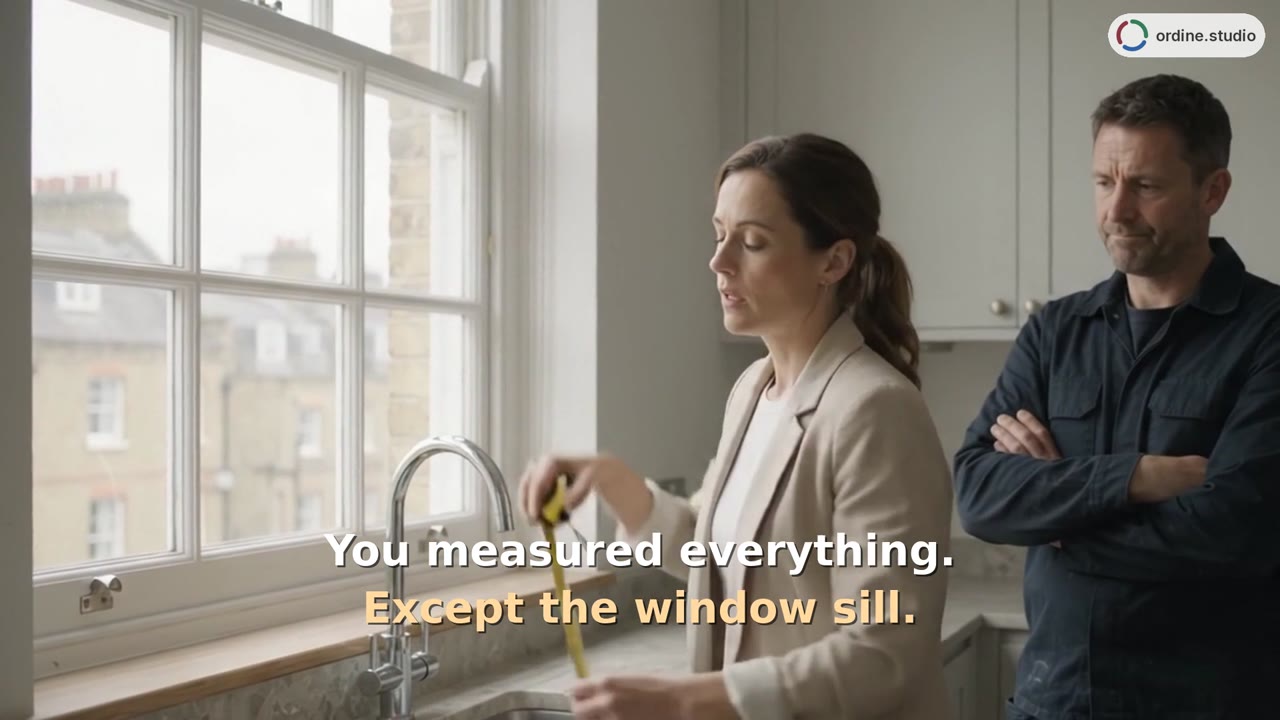 75 sGetting startedExplore the project setup, three work phases and a kitchen checklist in Ordine. The walkthrough shows a note beside a site check, completed checklist items, the task timer and the Up Next overview.
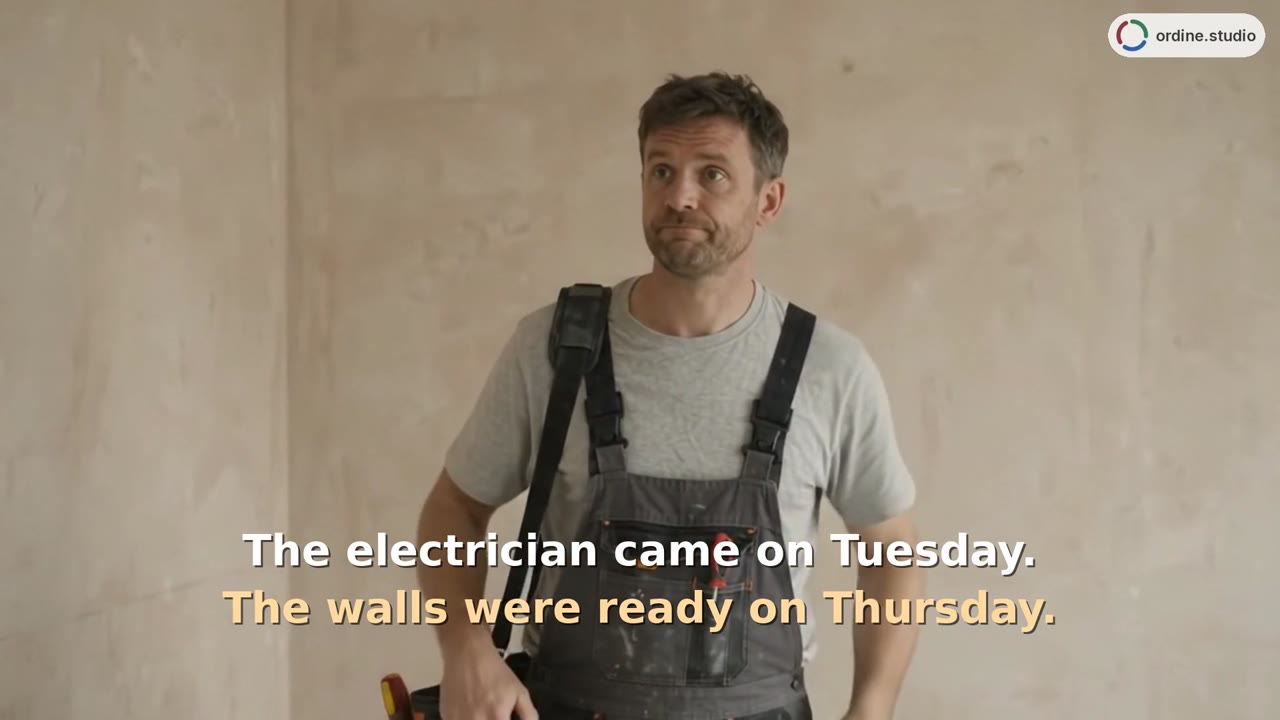 53 sTasks and deadlinesA kitchen-project walkthrough introduces a new task, appointment details and a checklist follow-up. See how dates and unfinished checks appear alongside the work in Ordine's Up Next overview.