Five kitchen revisions. How many hours?
Time tracking for interior designers starts with recording the work behind each task. In this walkthrough, Ordine combines a task timer, manual time entries and revision counts, then shows the hours by task, room and person.
Give the fifth revision a place in the record
A kitchen design can go through several rounds before the client is happy. Each round takes time, but the final drawing alone tells you little about the effort behind it. The opening scene introduces that problem; the application walkthrough shows how to record the work as part of the project.
The example follows a kitchen task and the time entries around it. Keeping those entries alongside the work gives the studio something concrete to review when a similar project comes along.
Time tracking for interior designers, one task at a time
Press play on the task you are working on. When you stop the timer, Ordine opens a window where you can check the duration before logging it. The demonstration adjusts the entry to 1:45, then saves it.
That review step lets you record the duration you intend to keep. The narration also identifies the date and person's name as part of the entry, connecting the time to both the task and the person who did the work. The task remains the starting point for understanding what those hours relate to.
Add the call you worked on earlier
A timer is one way to record work; the video also shows a manual entry. Using “Log time,” the demonstration enters 1:30 and adds “Client call” as the description.
This is useful when a conversation has already happened or you started working before pressing play. The short description gives the entry context when you return to the project. Looking back, you can distinguish that call from the time spent on a drawing revision rather than relying on a single unexplained total.
Compare agreed revision rounds with completed rounds
The revision counter records two figures: the rounds included in the quote and the rounds completed. In the example, the quote includes three rounds and the completed count reaches five. Ordine displays “2 over the quote.”
That comparison makes the extra rounds visible alongside the time record. It gives you a clearer basis for reviewing the scope you agreed with the client and the work actually carried out.
Review where the hours went
The “Hours and value” overview brings the entries together, with breakdowns by task, room, person and device. You can look at the kitchen in the context of the project, then examine the contribution of individual people.
Use that record when preparing the next quote: review which work took time and how the revision count compared with the allowance. The practical result is a more specific starting point for your own judgment about a similar job.
Ordine does not turn these time entries into invoices.
Questions and answers
Can I check the timer's duration before saving?
Can I add time after a call?
How do I see revisions beyond the quote?
Can I review hours by room and person?
See the work behind your next quote.
Join the Ordine early-access list for launch news and an early price offer. No payment today. No obligation to buy.
More videos
 37 sClient change requestsCopy the corrections, paste them into a task's checklist and work through the resulting items. The phone-view demonstration adds a note, checks completed points and returns to Unfinished checklists.
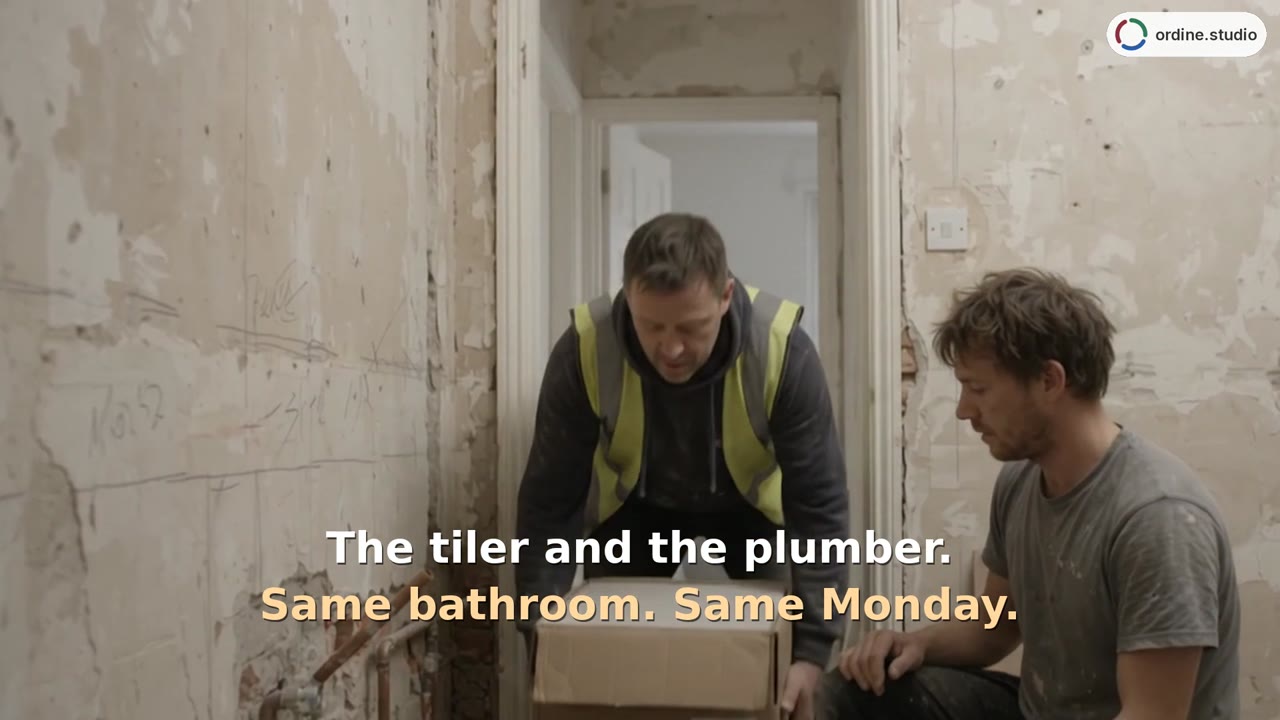 43 sSchedule and contractorsAdd appointments for the plumber and tiler, then review their timing alongside the electrician on the project timeline. Switch to Deadlines for a date-ordered task list.
 38 sYour data stays yoursCheck where the project is saved, open Saving and devices, and view the Dropbox connection option. Then open Status and use Copy all to copy the project text.
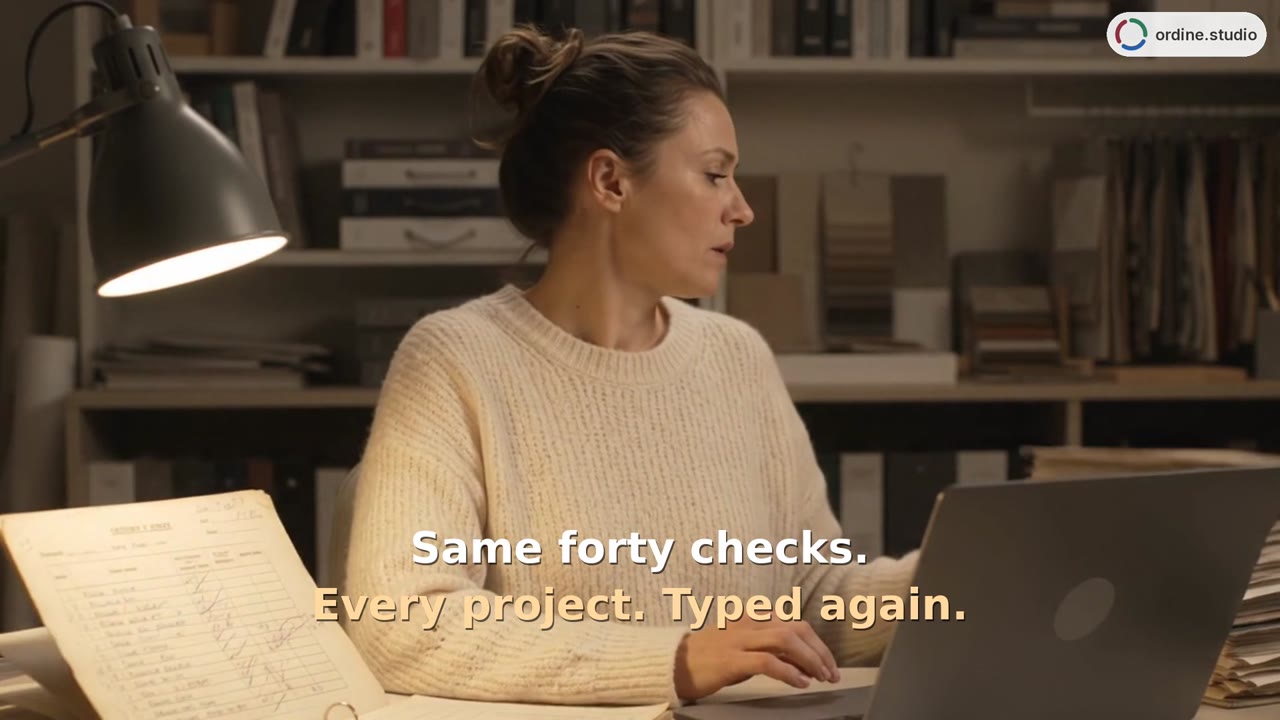 41 sReuse checklistsCopy a five-point kitchen checklist with two completed checks, paste it into another task and see the new list start at 0/5. Add a floor-drain check for the bathroom.